 Guides
 API Reference
Connect to ad/email platforms
Sync your existing CRM, ad, and email tools with Sona so the buyer journey lives in one place — and flows both ways.
Data connectors automatically sync your CRM, marketing tools, ad platforms, and more with Sona, creating a unified view of the buyer journey. These bi-directional connectors enhance data and unlock deeper insights. This guide will walk you through setting up connectors to automatically sync data from your existing tools, making your workflow seamless and your insights more powerful.
Setting Up Data Connectors
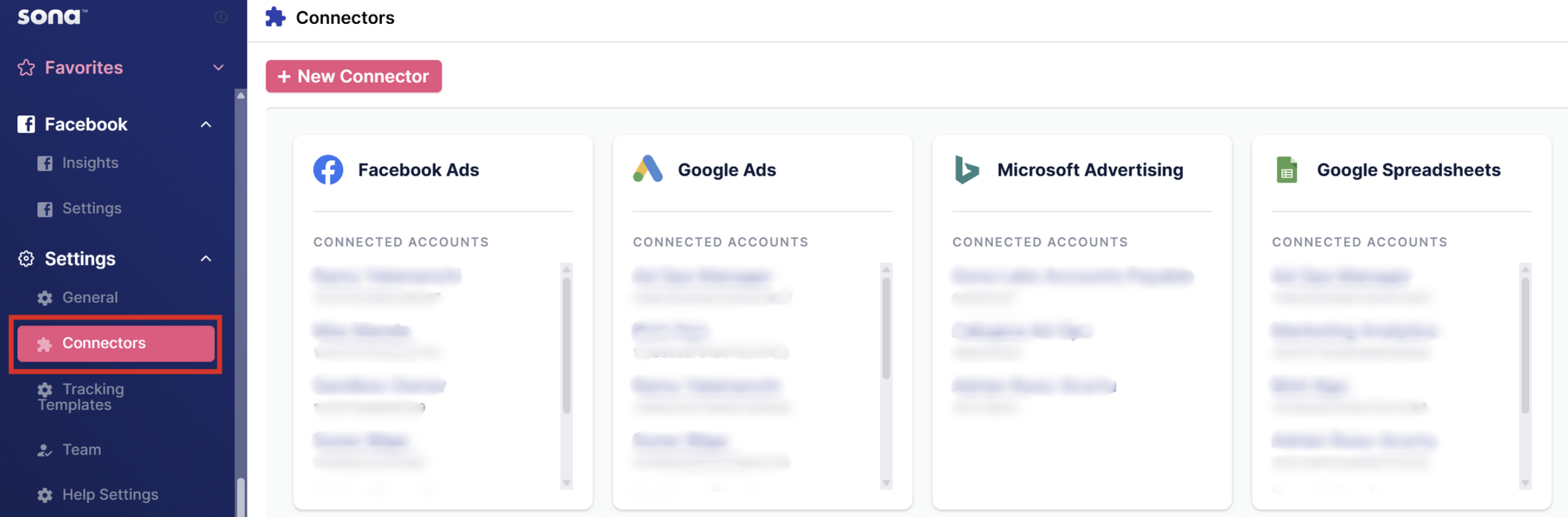
Step 1: Access the Connectors Section
Go to the Connectors section in your Sona Platform dashboard.
Step 2: Add a New Connector
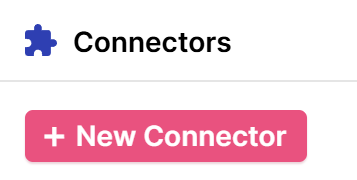
- Click + New Connector.
- Select your desired platform from the available integrations list.
- Click Connect to initiate the setup.
Step 3: Complete the Authentication Process
- After clicking Connect, you will be redirected to either:
- The platform's authentication page (e.g., HubSpot, Salesforce), or
- Sona's configuration page for the connector, depending on the integration.
- On the platform's page:
- Log in with your credentials.
- Grant Sona the necessary permissions to access your account data.
- On Sona’s configuration page:
- Follow the instructions to complete any required setup details, such as selecting an account, workspace, or scopes.
Step 4: Verify the Connection
- Review the permissions and confirm that you are OK with what is being requested.
- Approve the permissions. Once authentication is successful, Sona will be able to sync data from the connected platform.
Step 5: Repeat for Additional Platforms
- Repeat the above steps for each platform you wish to integrate.
- This process builds a powerful, unified data ecosystem within Sona.