 Guides
 API Reference
Manage CRM Permissions
Edit a teammate's name, email, role, or password (or remove them entirely) directly from their user profile in Sona.
This guide explains how to edit a user profile or delete it if needed.
Edit User Profile
Step 1: Open the User Profile
Click on the target user's email.

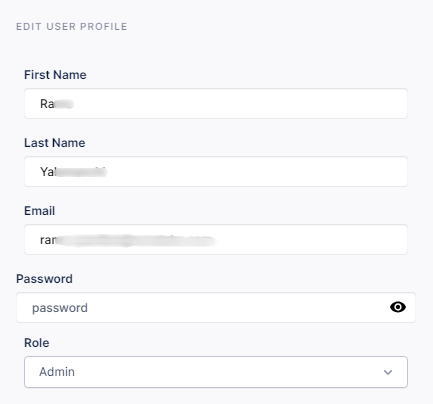
Step 2: Edit User Fields
Edit the user's name, email, password, or role as needed.
Step 3: Save Edits
Click Save to apply your changes.

Remove a User
Step 1: Open the User Profile
Click on the target user's email.

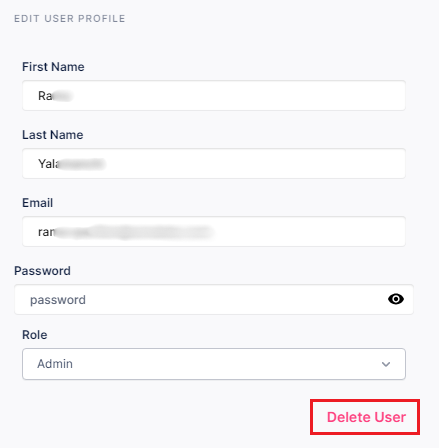
Step 2: Delete the User
Click the Delete User button.
Step 3: Confirm Removal
Click Save to confirm user removal.
info
Deleting a user removes their access immediately. If you need to temporarily restrict access, consider changing their role to Viewer instead.