 Guides
 API Reference
Tracking Setup
Get Sona collecting visitor data — install the tracking pixel and choose how much it captures.
To collect web tracking activity related to website visits, you’ll need to implement the Sona SDK. The Sona SDK captures data as users browse pages on your site. To ensure maximum attribution coverage, it is recommended to install the Sona SDK directly on your website. In some cases, ad blockers can prevent tag managers and their accompanying scripts from loading, resulting in potential data loss. As an alternative, you can install the Sona SDK with Google Tag Manager.
Sona SDK Setup
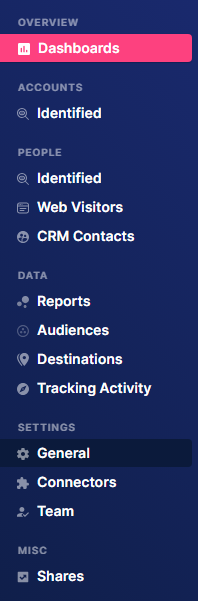
Step 1: Click the General button
Under Settings in the left sidebar, click the General button.
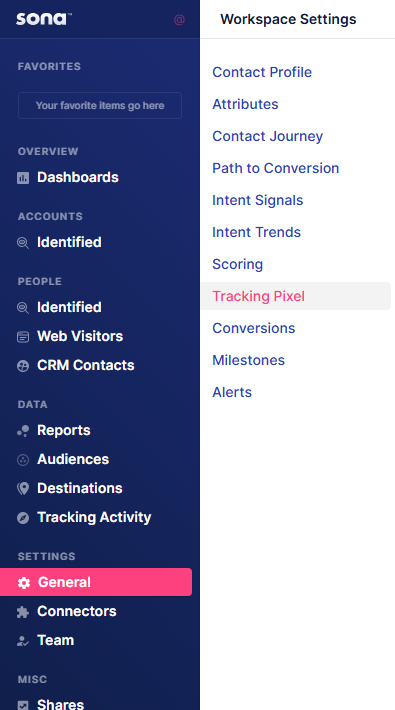
Step 2: Click Tracking Pixel
Step 3: Make sure Setup for Websites is selected
In the left panel, confirm that Setup for Websites is clicked.
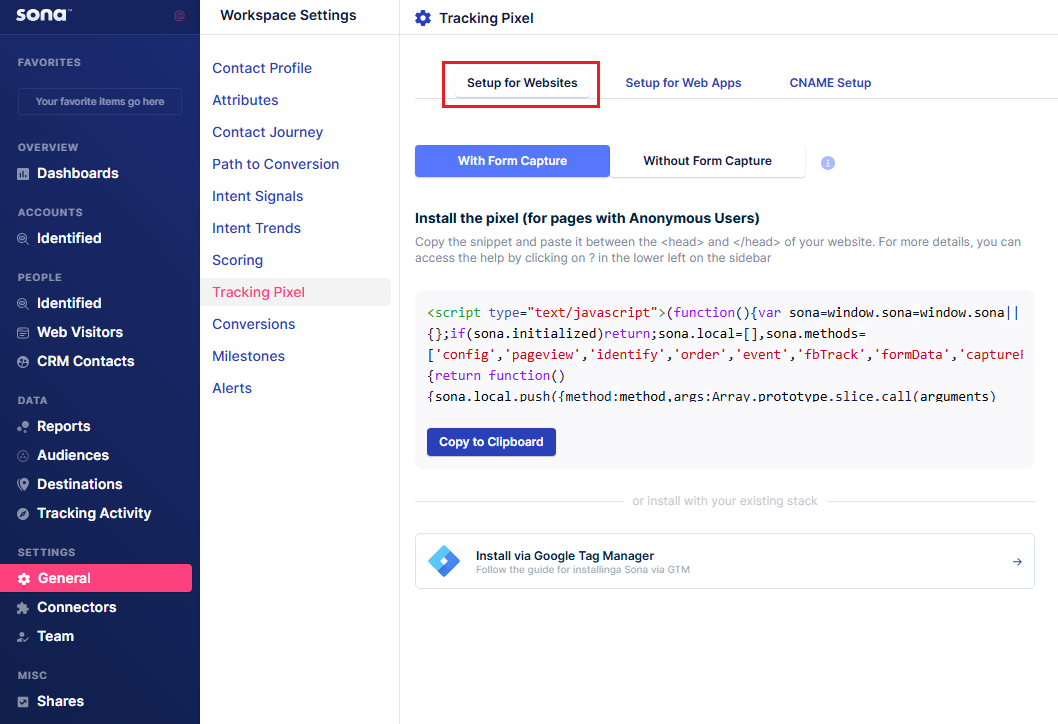
Step 4: Choose With or Without Form Capture
Select either With Form Capture or Without Form Capture, depending on your setup.

With Form Capture - The tracking pixel records user interactions, including form submissions, capturing details like names or emails for deeper attribution and lead tracking.
Without Form Capture - The tracking pixel tracks visits and engagements but does not capture form submissions, limiting data to page views and click activity.