 Guides
 API Reference
Install JavaScript in Website
Add Sona to your site by hand — paste the tracking script into your HTML head for the most reliable coverage.
We recommend manually installing the Sona SDK by copying the tracking script, then pasting it within the <head> tags of your site’s HTML code. This requires that you have the ability to edit your site's HTML. If not, you'll have to ask your web developer to install the script on different pages of your site.
Step 1: Open General settings
Click General under Settings in the sidebar.
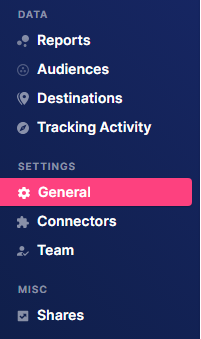
Step 2: Go to Tracking Pixel
Click Tracking Pixel under Workspace Settings.
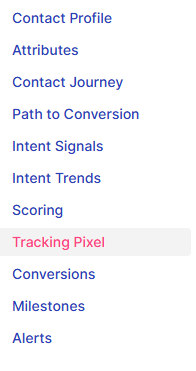
Step 3: Verify Setup for Websites
Ensure the tab is set to Setup for Websites.
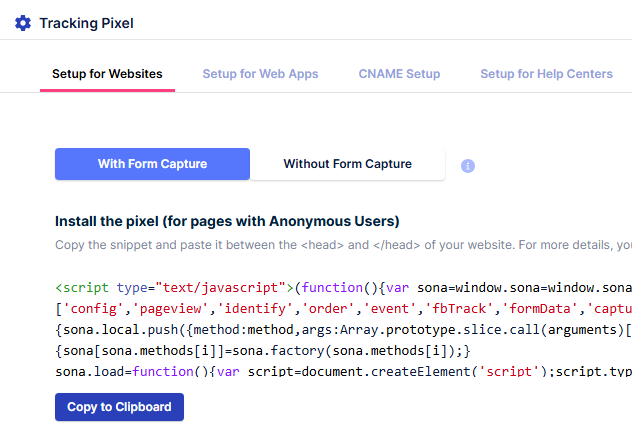
Step 4: Choose a Form Capture method
Select the Form Capture method you want to use.

With Form Capture - Automatically capture user form submissions in your website.
Without Form Capture - Will not capture user form submissions in your website.
Step 5: Copy the script
Click Copy to Clipboard to copy the tracking script.
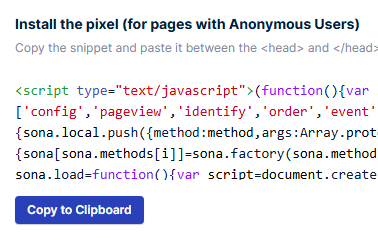
Step 6: Open your website builder
Go to the platform where your website is hosted or managed.
We'll be using Webflow as a sample.
Step 7: Access Site Settings
Log in, hover over the website where you want to add the script, and click Site Settings.
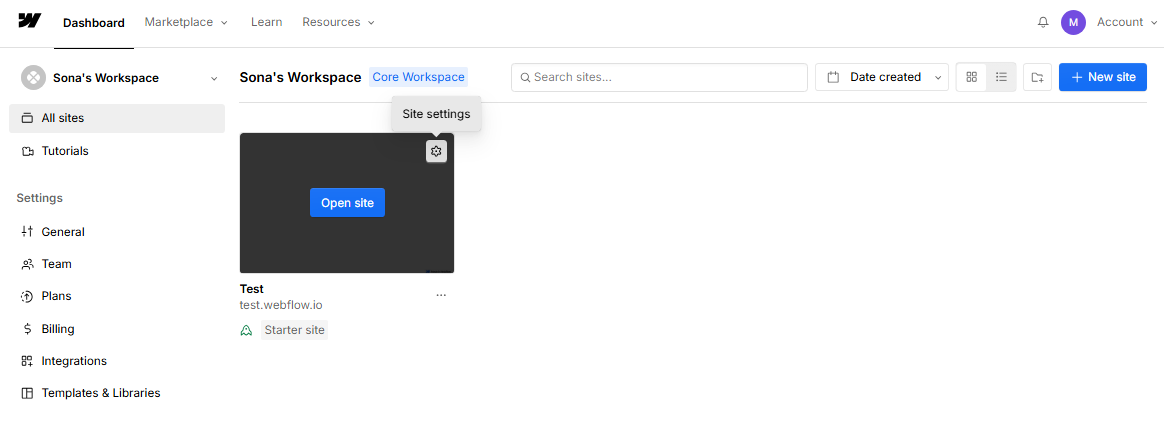
Step 8: Paste the script in Custom Code
Navigate to Custom Code and paste the copied script into the Head Code section.
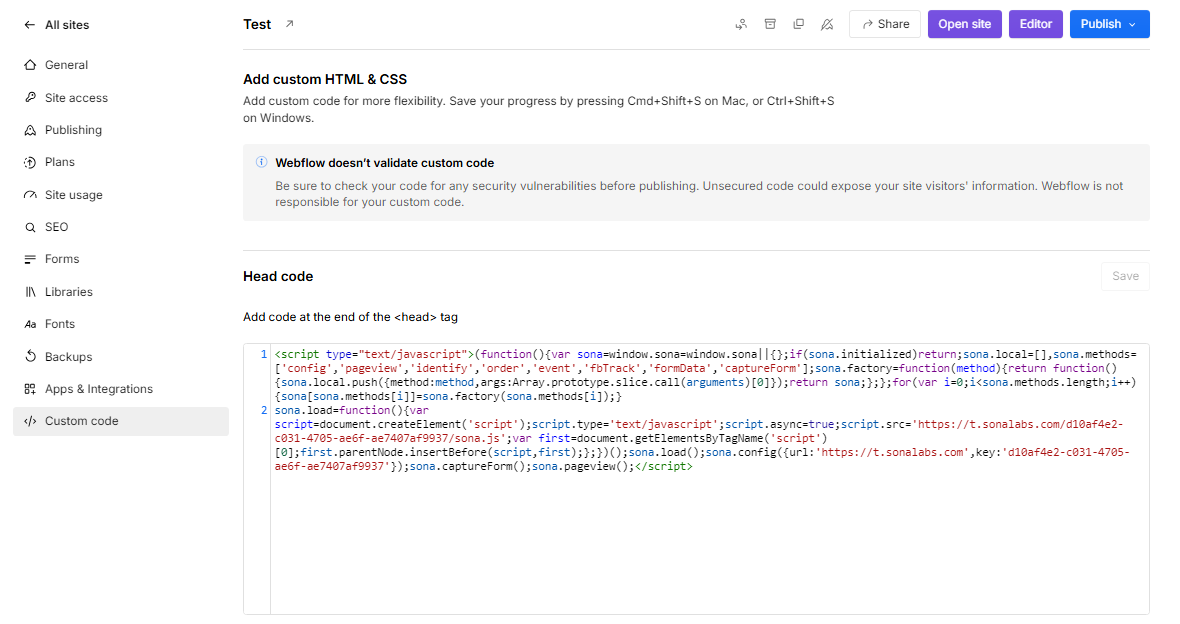
After adding the script, save your changes and publish your site. To verify it's working, check your Sona dashboard for activity.
Step 9: Verify tracking
Check Tracking Activity to ensure the tracking script is working properly.
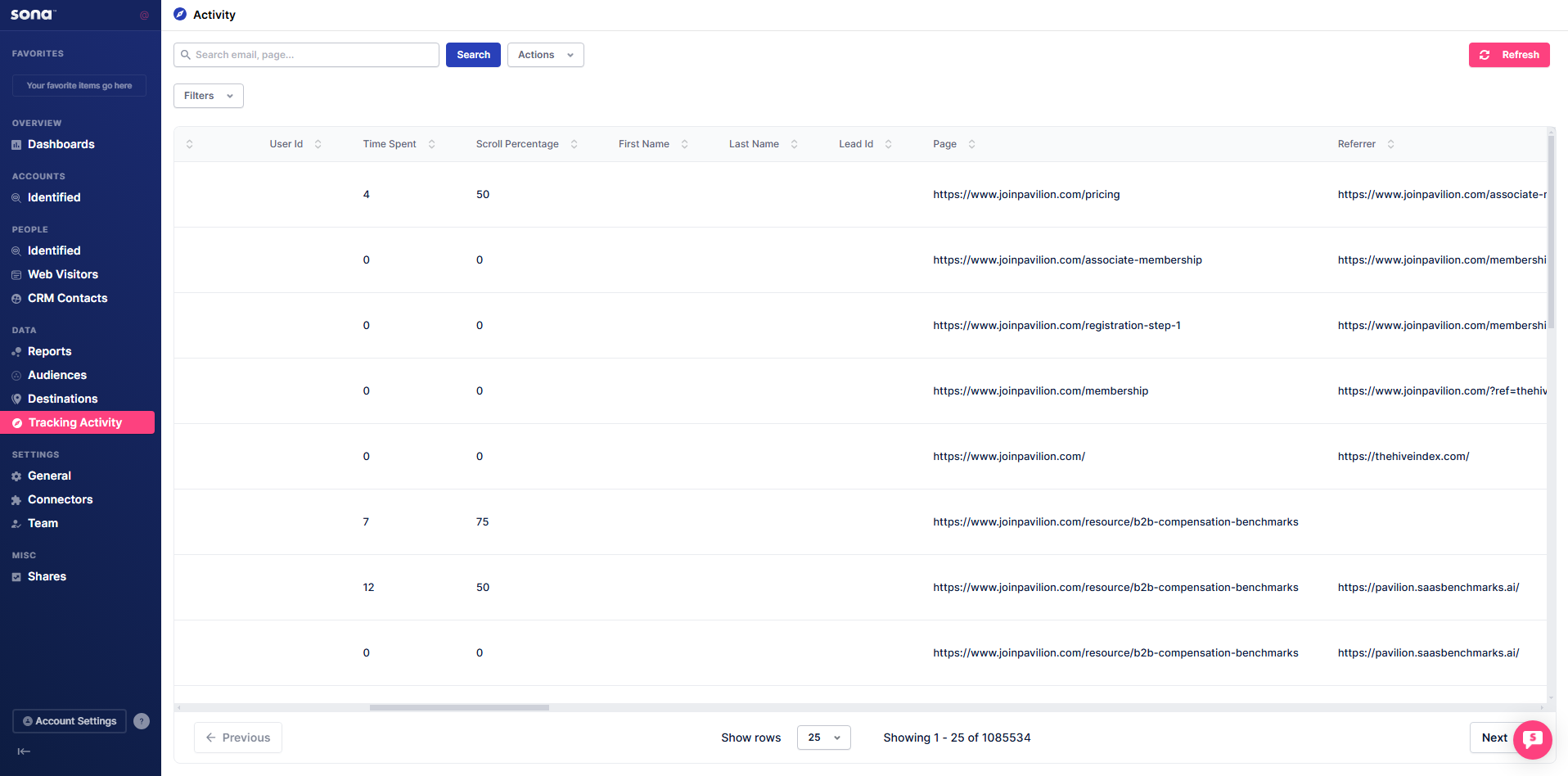
This table displays the tracking activity for the website where you added the script.