 Guides
 API Reference
Get account activity alerts
Use the Alerts page to create and manage automatic Slack notifications whenever a visitor triggers an intent signal.
Real-time alerts surface high-intent activity the moment it happens, giving your team the timing advantage to reach out while an account is actively exploring your product.
Before creating a new alert, set up the Slack integration via the Connectors page.
Configure Alert
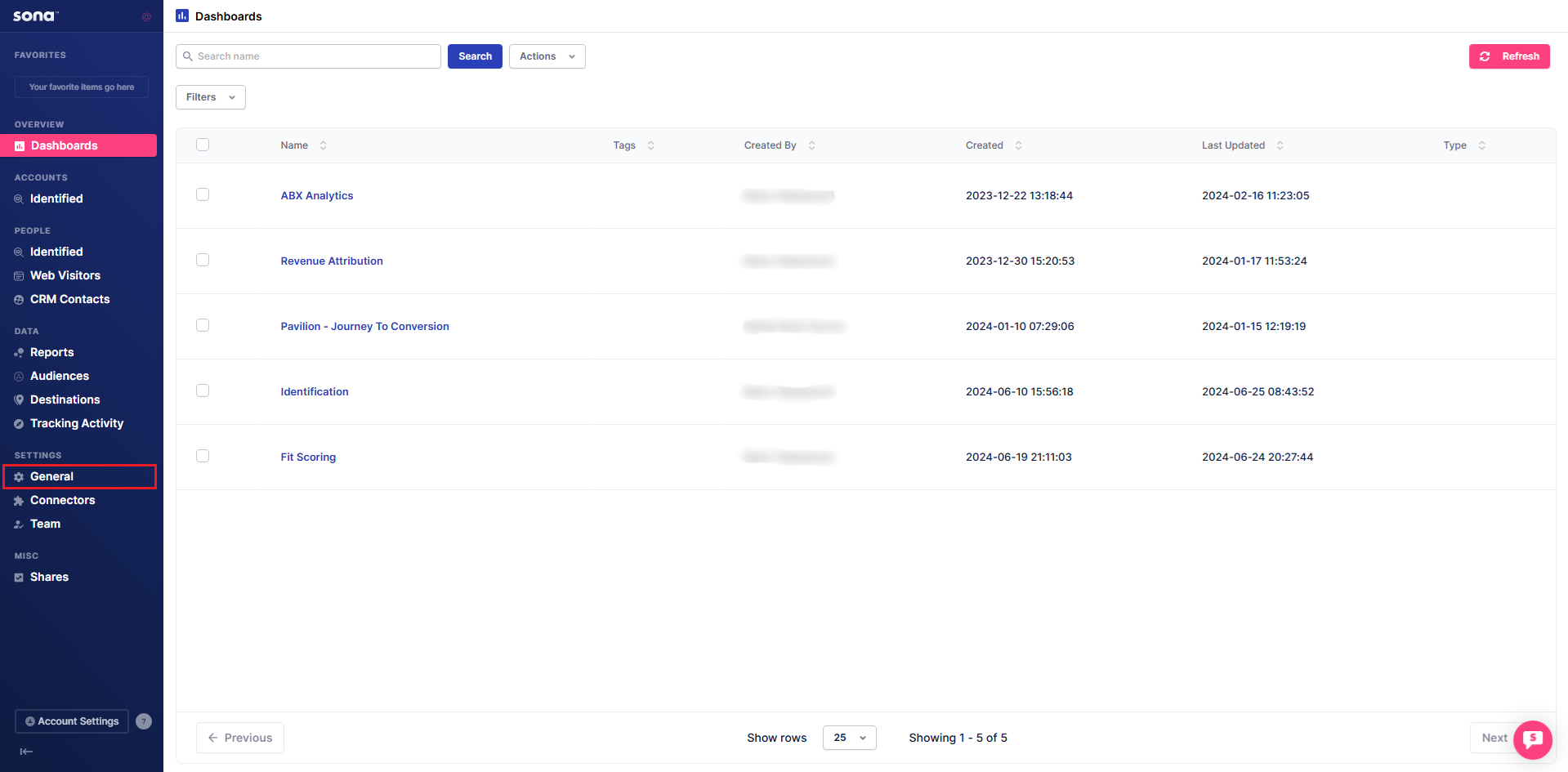
Step 1: Navigate to General
Go to General under Settings.
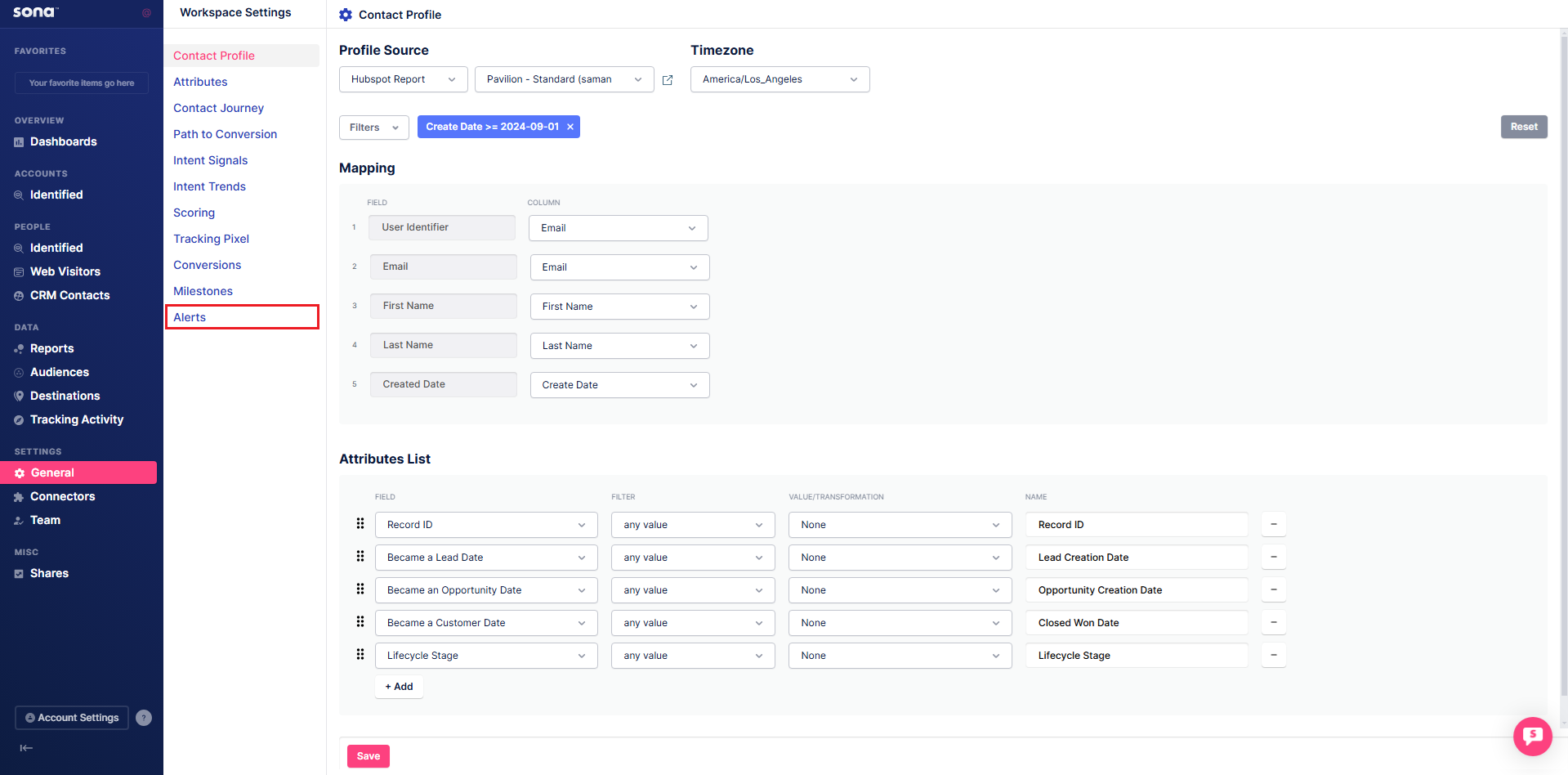
Step 2: Open Alerts
Click Alerts.
Step 3: Activate an alert
Activate an existing alert by clicking the slider.
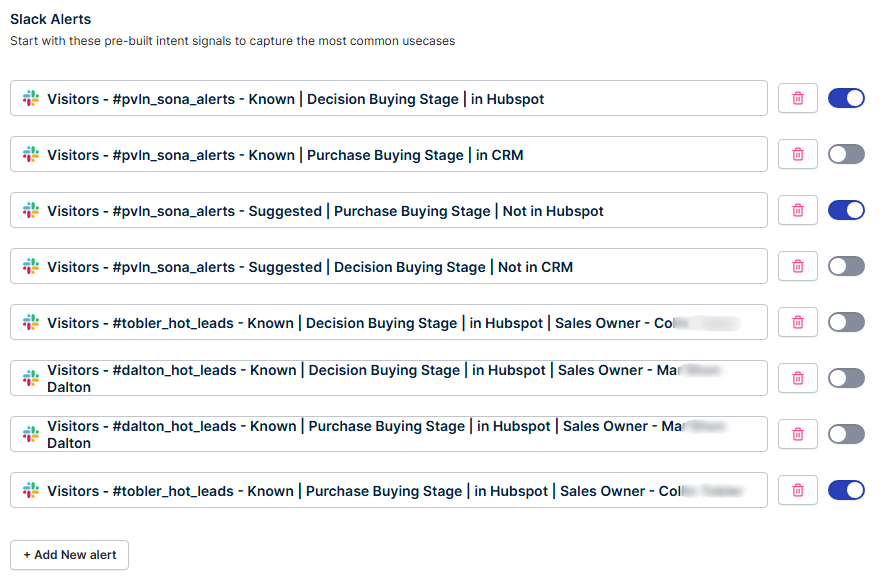
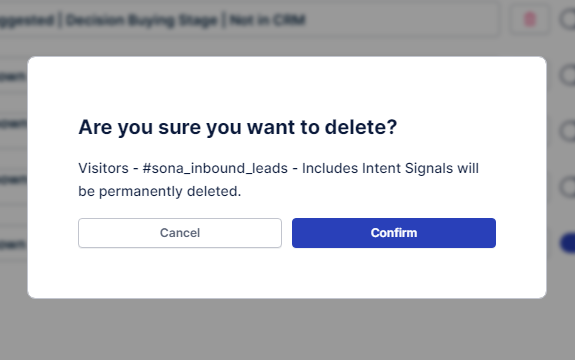
You can also click the trash icon to delete an alert.
Create a New Alert
Step 1: Add New Alert
Click + Add New Alert at the bottom of the list to open the configuration screen. Choose whether to add a new alert for Web Visitors or Accounts.
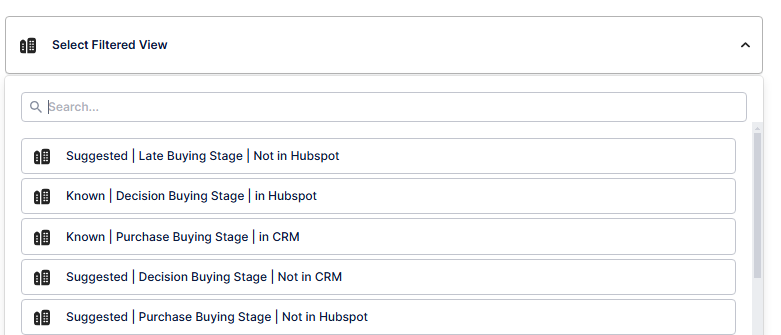
Step 2: Select a filtered view
Choose a filtered view for the alert.
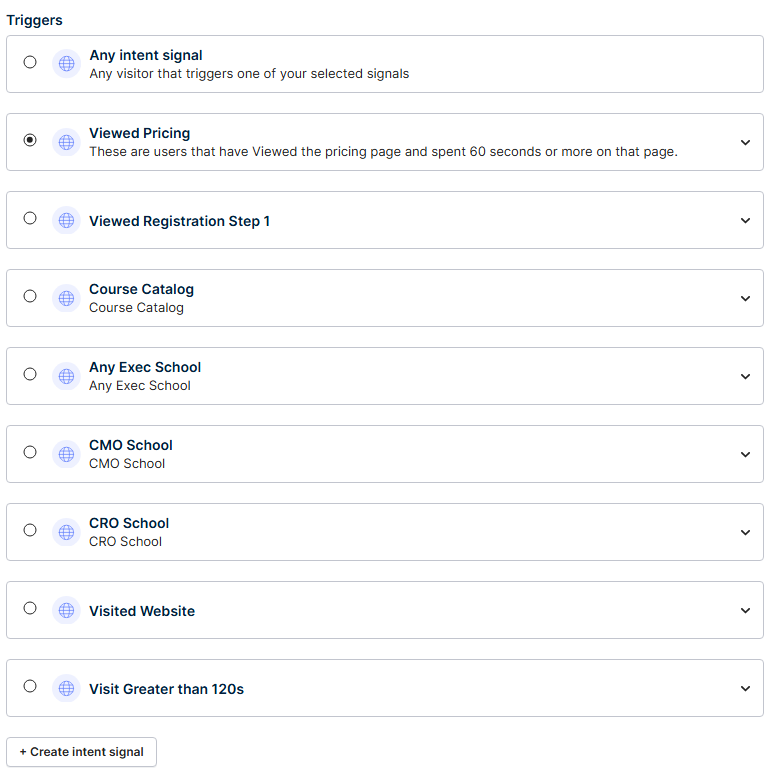
Step 3: Select or create an Intent Signal
Select an existing Intent Signal or create a new one.
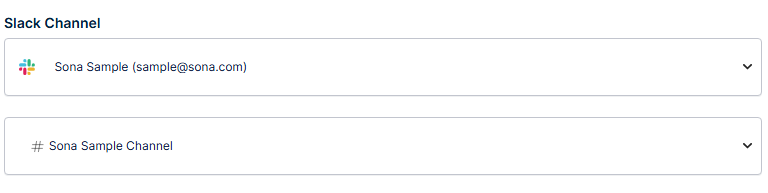
Step 4: Choose target Slack channel
Select the Slack channel where the alert will be sent.
Step 5: Save or cancel the alert
Click Save Alert to apply changes or Cancel to discard changes and return to the Alerts page.

Create separate alerts for your A-tier and B-tier ICP segments with different Slack channels — this routes top-priority accounts directly to senior AEs while keeping SDR queues clean.