 Guides
 API Reference
Page Views
Track how many pages visitors from each company view on your site — more pages means deeper engagement and higher buying intent.
The Page Views column in the Accounts table shows the total number of pages viewed by visitors from a specific company while browsing your website. This helps measure engagement and interest levels, giving you insights into how actively a company is interacting with your site.
How to View Page Views
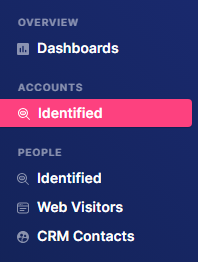
Step 1: Navigate to Identified
Go to Identified under Accounts.
Step 2: Open Filters
Click the Filters dropdown and type "Page Views" in the search bar.

Step 3: Apply condition
Add a condition, then click Apply.

The condition means that only accounts that have more than 1 page view will be displayed.
Step 4: View the Page Views column
In the table, use the horizontal scrollbar to scroll to the right until you see the Page Views column.
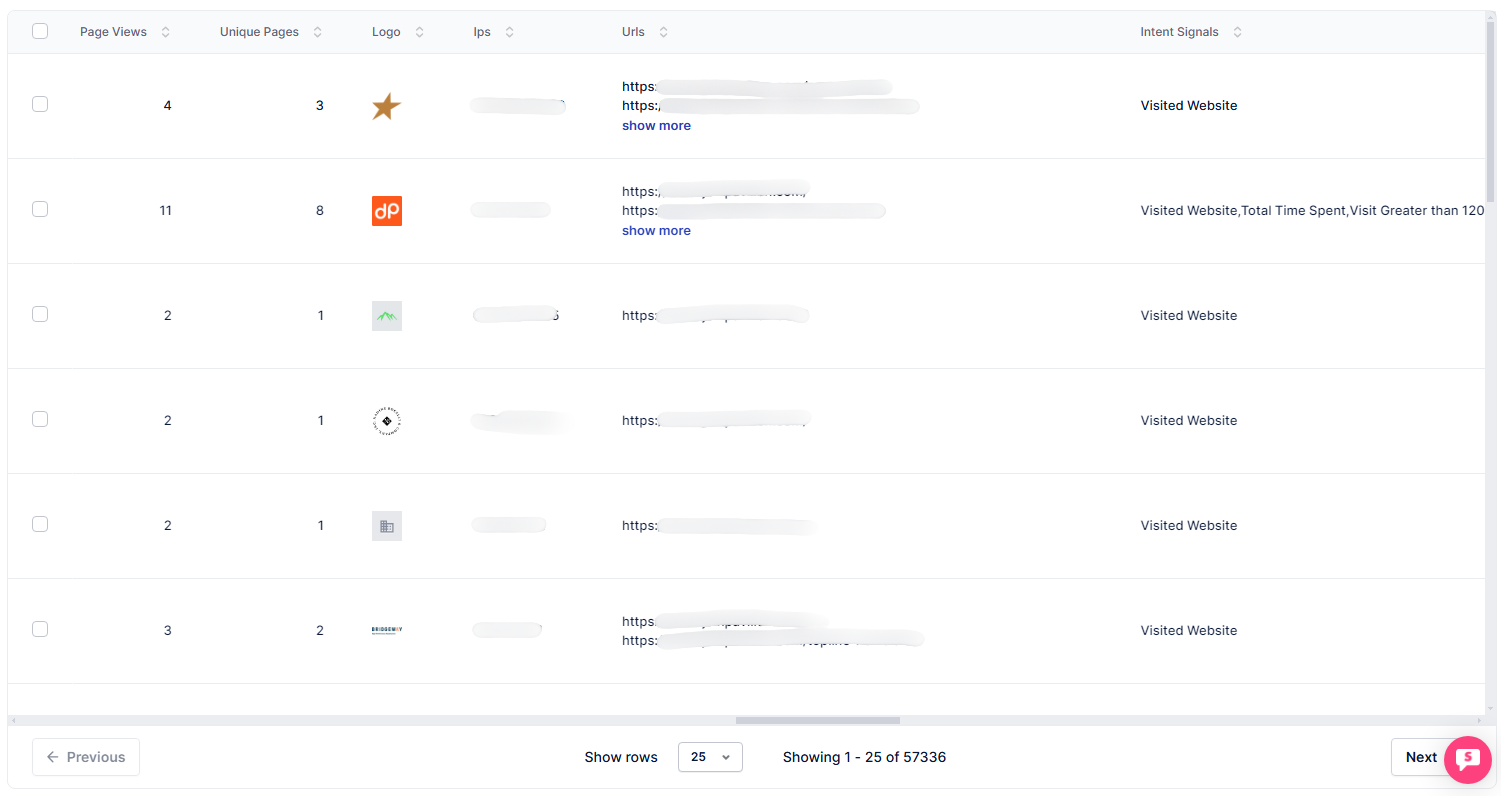
Here, you'll see the number of pages visited by people from each company while interacting with your website.
Filter for accounts with more than 5 page views — consistent multi-page browsing is one of the strongest signals that an account is actively evaluating your product.