 Guides
 API Reference
Identified Accounts
Turn anonymous website traffic into qualified pipeline — identify the companies visiting you, find the right contacts inside them, and prioritize who to engage.
This guide shows you how to leverage Sona Accounts to identify which companies are visiting your website and to turn that insight into action. You'll learn to analyze account profiles, find key contacts within visiting companies, and use persona matching to prioritize your outreach efforts. With this comprehensive approach, you'll be able to transform anonymous website traffic into a pipeline of qualified prospects and to understand when your existing leads are engaged.
A. Navigating and Filtering Identified Accounts Data
Step 1: Access the Identified Accounts dashboard
- Navigate to the Identified Accounts section in your Sona platform
- Review the table showing all identified companies visiting your website
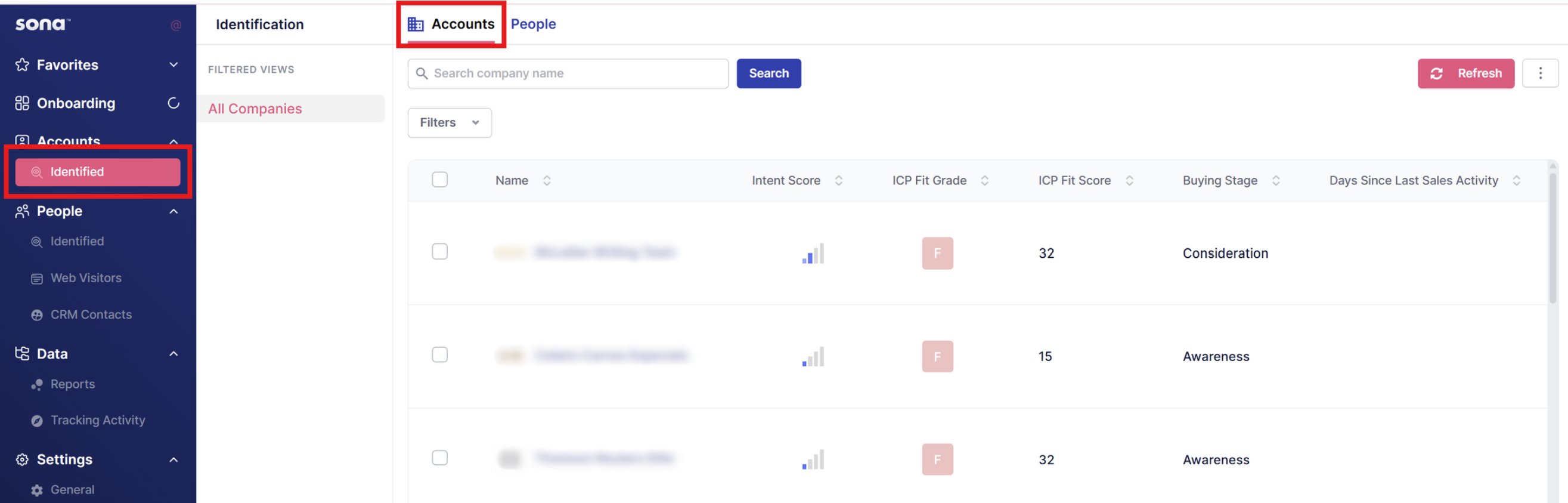
Step 2: Search and filter for specific accounts
- Use the search bar to find accounts by company name or keywords
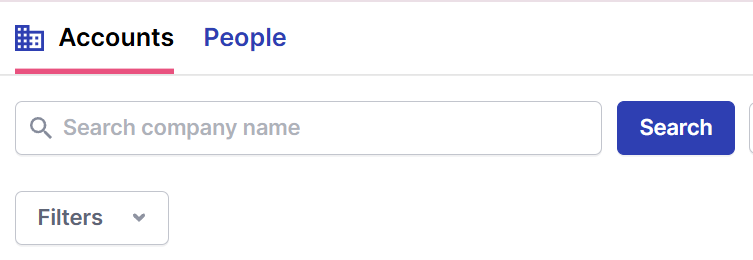
- Click Filters to narrow down accounts by specific attributes (industry, number of employees, location, ICP score)
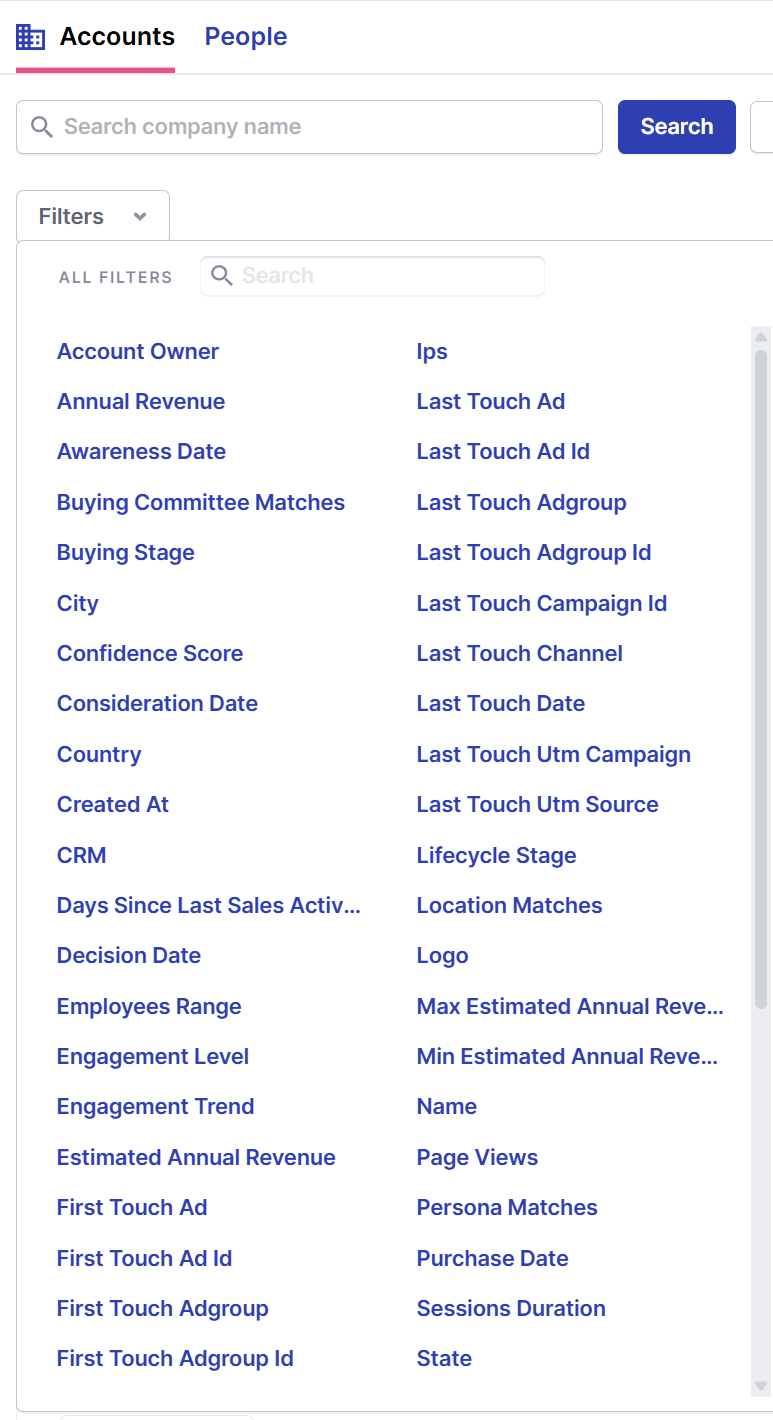
- Click Save Filter to save your filtered view under for future use

Step 3: Organize and sort your data
- Click the arrows beside column names to sort data in ascending or descending order

- Hover to the right of sort arrows and click the pin icon to bookmark important columns to the left

- Click the three dots in the upper right to show/hide columns or download data as CSV
For more details on Account Profiles, see the **Platform: Account Profiles** article.
B. Find and Enrich Account Contacts
Step 4: Discover people within target accounts
- Click People to see employees for company accounts that have visited your website
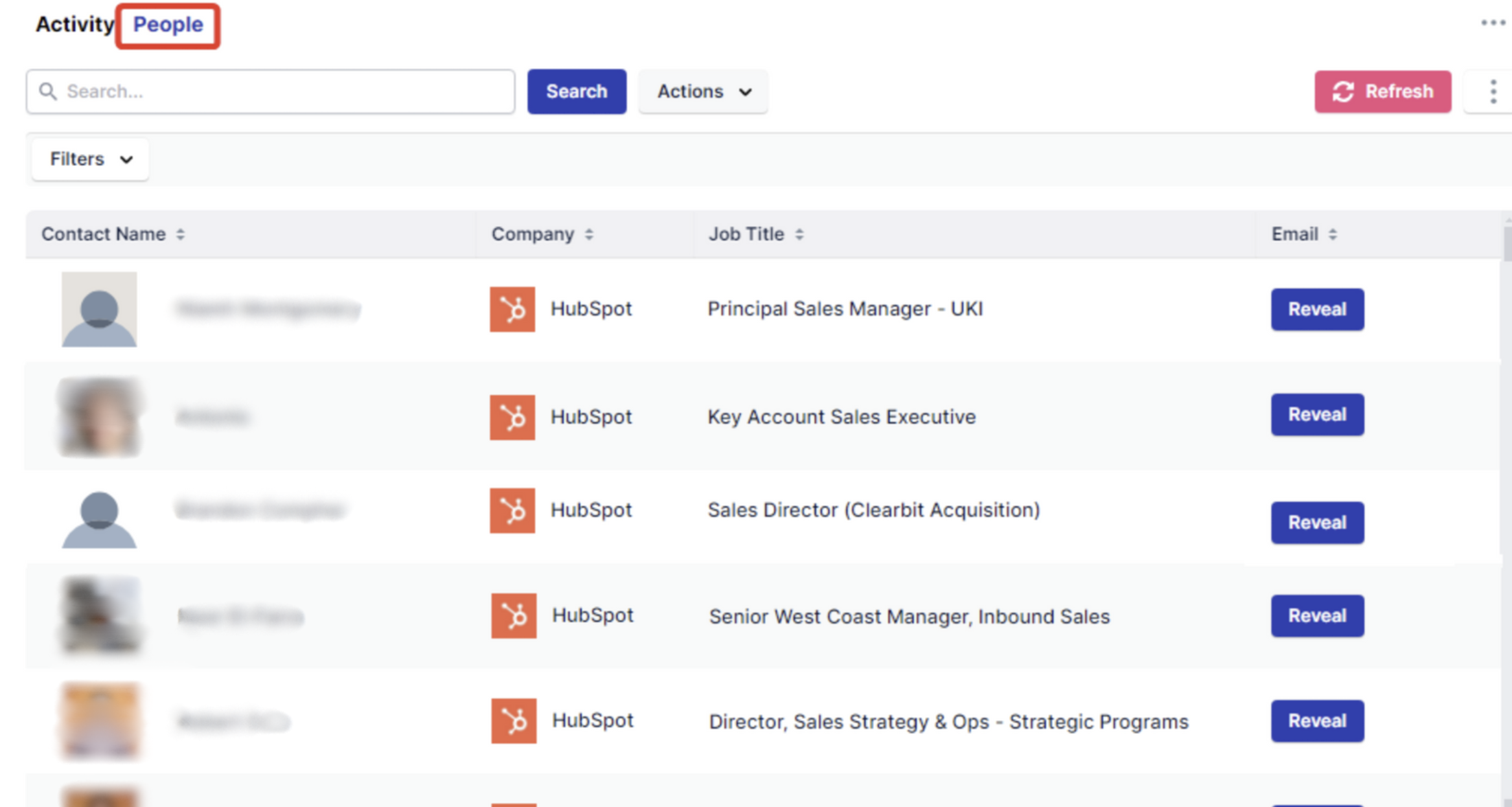
Step 5: Reveal contact information
- Click the Reveal button next to any person to fetch their email address from third-party data providers integrated with Sona. Revealing contact information will consume credits that are associated with your plan.
- You can then add revealed contacts to lists or audiences
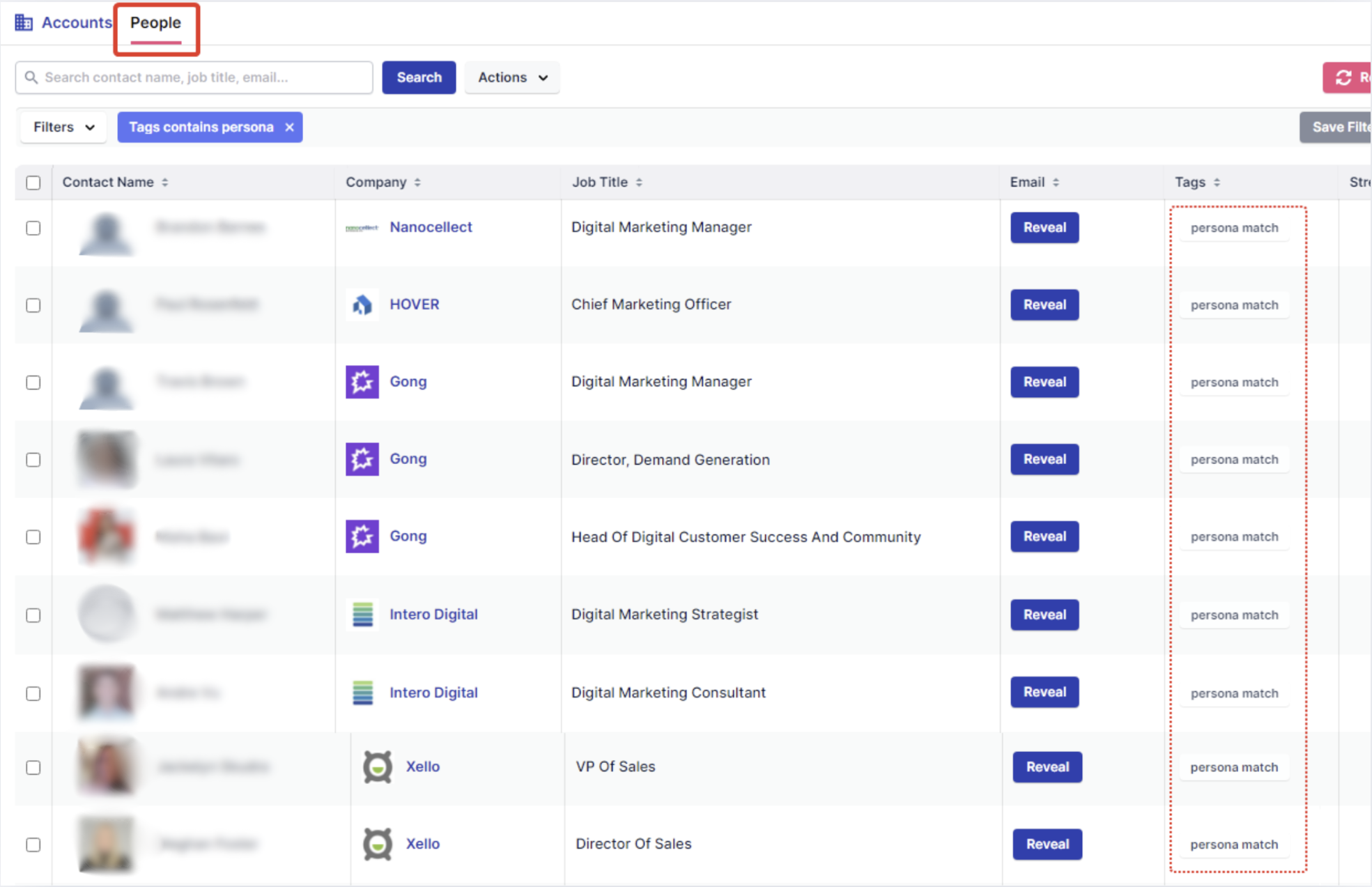
Step 6: Enrich accounts with more contacts
- Click on the Company name to open the Account profile, and then select 'People'.
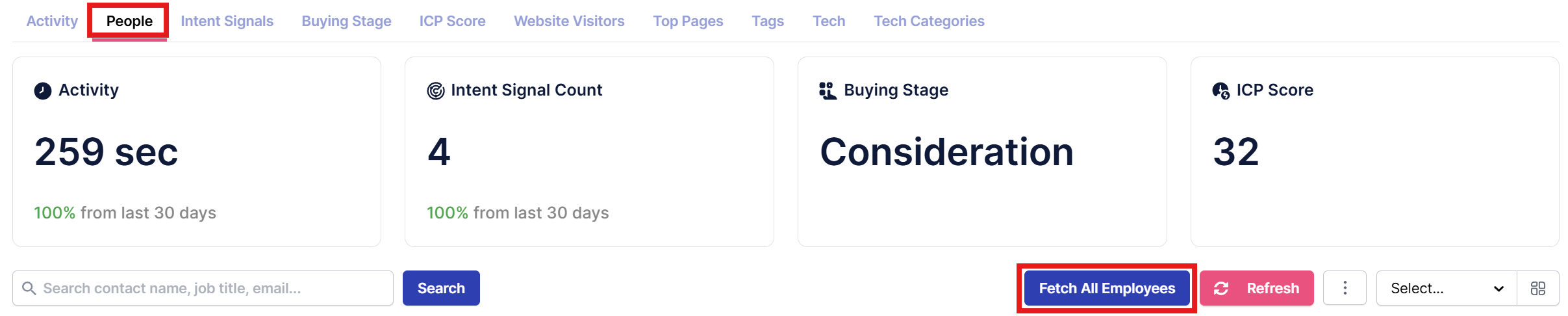
- Select Fetch All Employees to find company employees associated with the account
- Wait 1-2 minutes, then click Refresh to see newly discovered contacts
For general Persona configuration steps follow the instructions in the Workspace Settings: Personas.
Step 7: Build targeted lists from selected people
- You can also create lists of the selected people by clicking Add to lists.

For general Account List and People List configuration steps follow the instructions in the Platform: Account Lists and People: People Lists.