 Guides
 API Reference
Target Account Lists
Build a fixed set of accounts you control completely — unlike dynamic audiences that shift as filters change.
Account Lists let you manually build static collections of identified accounts, either by uploading a list of supported file type or curating accounts directly from the platform. These lists are different from dynamic audiences, which auto-update based on filter conditions. With account lists, you choose exactly which accounts to include, giving you total control. Lists can also be uploaded, enriched, and used as sources for Destinations or account-based marketing (ABM).
Types of Account Lists
There are two main ways to create account lists:
1. Self-curated Lists (Manual)
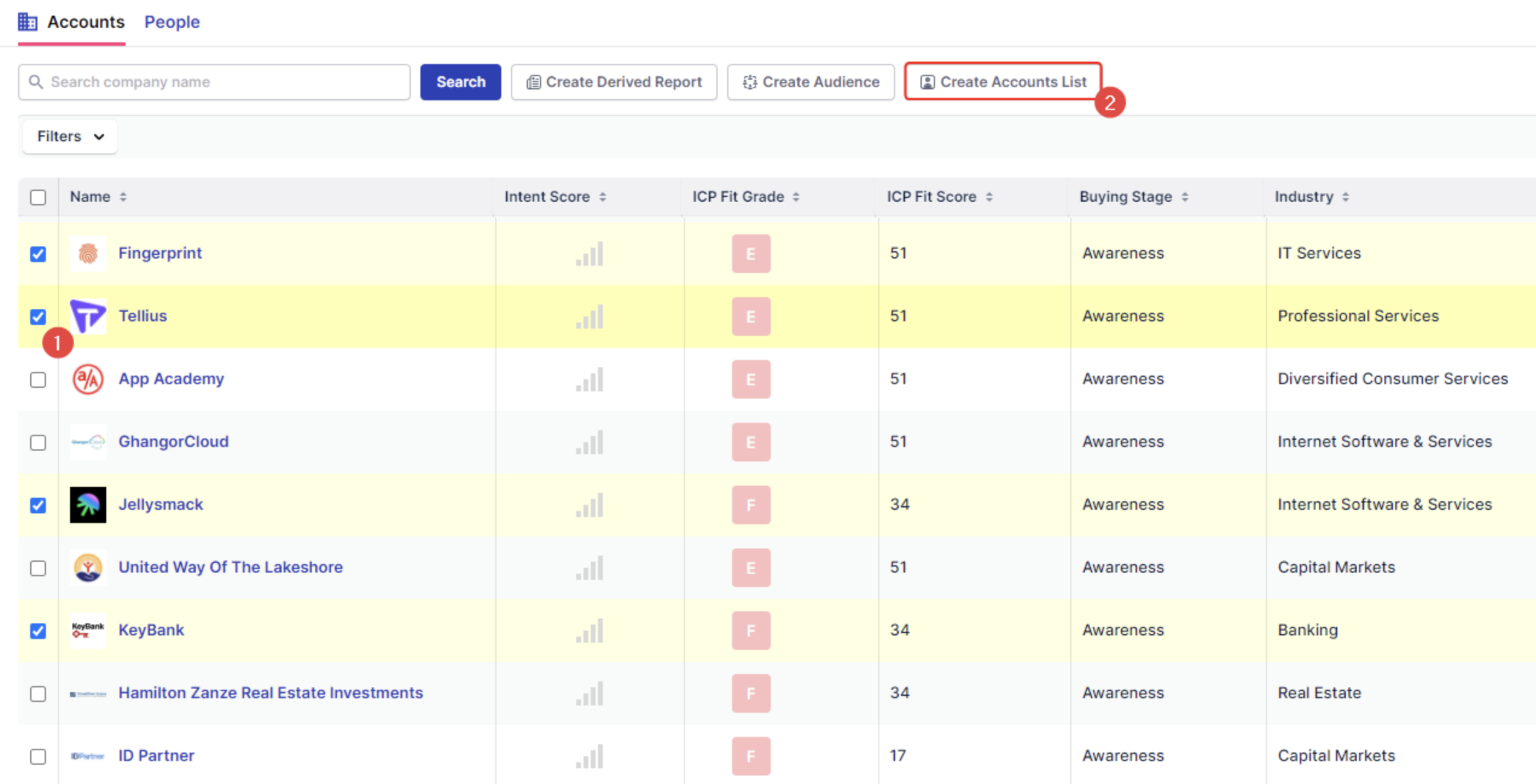
- Built by selecting accounts from the Accounts > Identified tab

- Best for: targeted outreach and syncing with destinations for multichannel outreach
- You select each account manually and either add to a new or existing list
2. Uploaded Lists (CSV Upload)
- Go to Accounts > Account List > Upload Account List to import a CSV
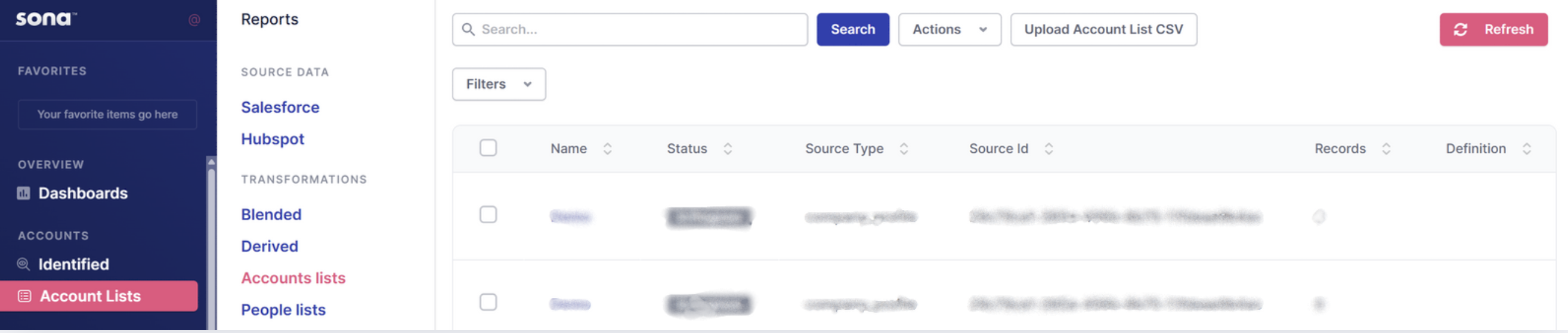
- Sona enriches the accounts automatically (firmographics, intent, etc.)
- Best for: importing external data, building enriched account-based audiences, syncing syncing with destinations for multichannel outreach
Step-by-Step Instructions
Step 1: Select Your Accounts
- Use the checkboxes next to account profiles to select the ones you want to include
- Apply filters if needed to narrow down the displayed profiles, but remember you'll still need to manually select each profile
Step 2: Initiate List Creation
- After selecting one or more profiles, click the Create Accounts List button
- This opens the list creation dialog
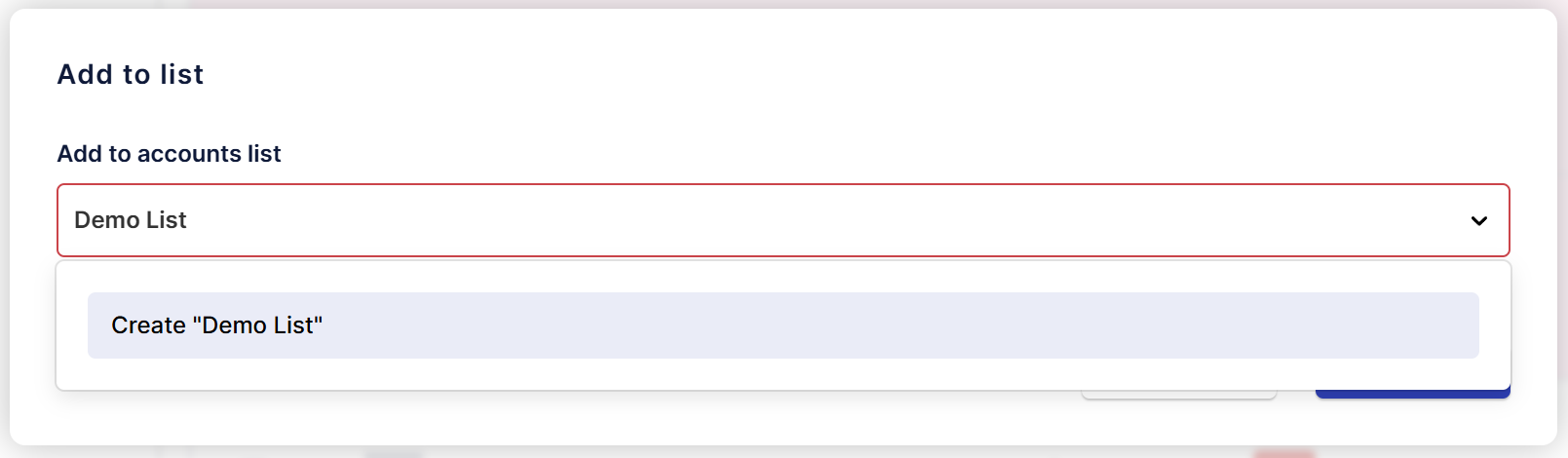
Step 3: Name and Save Your List
- Enter a descriptive name for your new list
- Click Create to finalize the new list
- Alternatively, use the dropdown menu to add selected profiles to an existing list
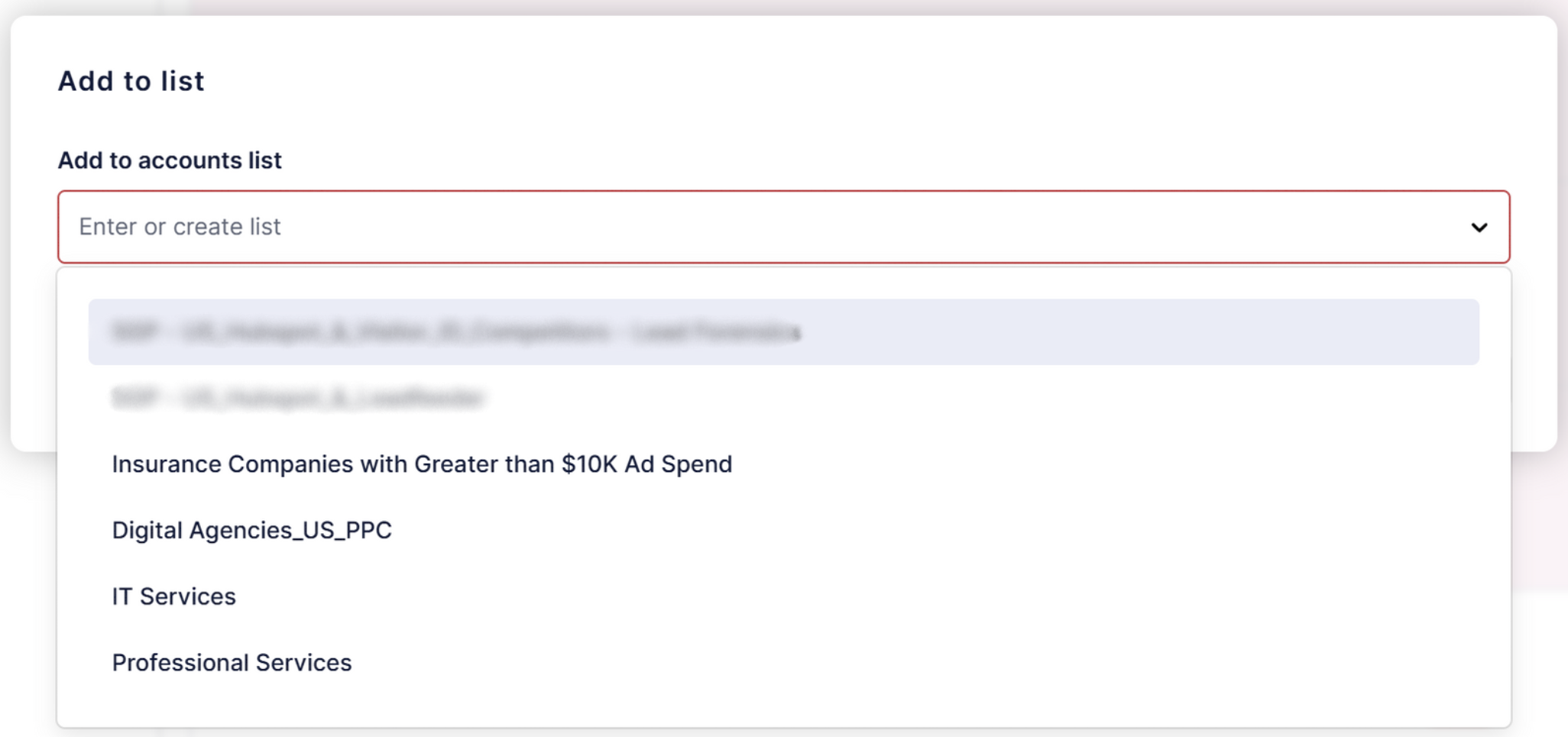
- Click Save to complete the process
Step 4: Navigate Between Account Lists
- Use the account list dropdown selector to switch between different lists you've created
- This dropdown will display all your available account lists by name
- Your newly created list will automatically appear as an option in this dropdown once saved
- The dropdown provides quick access to view and work with any of your existing lists without needing to recreate or search for them