 Guides
 API Reference
Step 3: Identify buyers engaging with your product
Layer purchase and engagement date filters in the People List to pinpoint the specific buyers currently active on your site.
This guide will walk you through using the People List feature to effectively identify and analyze buyer engagement.
Step 1: Navigate to Identified
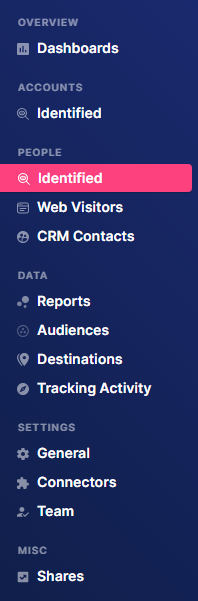
Go to People in the left sidebar and click Identified.
Step 2: Apply Purchase Date filter
Click on the Filters dropdown, type Purchase Date in the search bar, then click Purchase Date and add the desired conditions. This filters out non-buyer accounts.

We will display only buyers who made a purchase in the year 2025.

Step 3: Apply Engagement filter
Click on the Filters dropdown again, type Engagement in the search bar, and select Engagement Level, Engagement Trend, or Last Engagement Date.
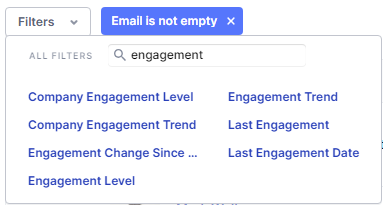
For this example, we’ll use Last Engagement Date to display only buyers who engaged with the product in the year 2025.

Step 4: View buyer engagement details
Scroll to the far right to see the headers displaying buyer engagement information.
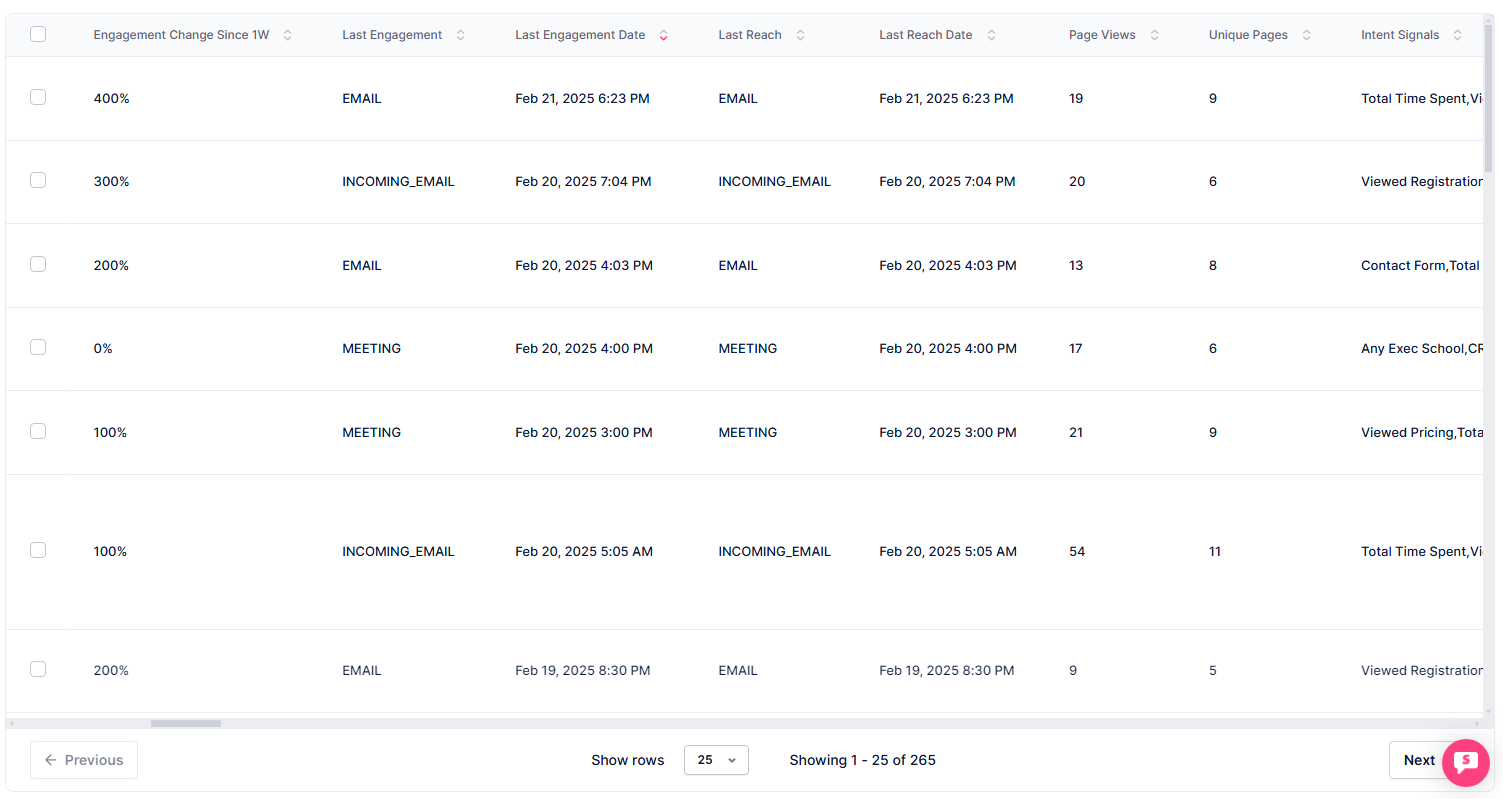
Here, you'll see details about the buyer's engagement with the product.
Combine Last Engagement Date and Purchase Date filters to find buyers who purchased in the last year and have re-engaged recently — these are your strongest expansion and upsell candidates.